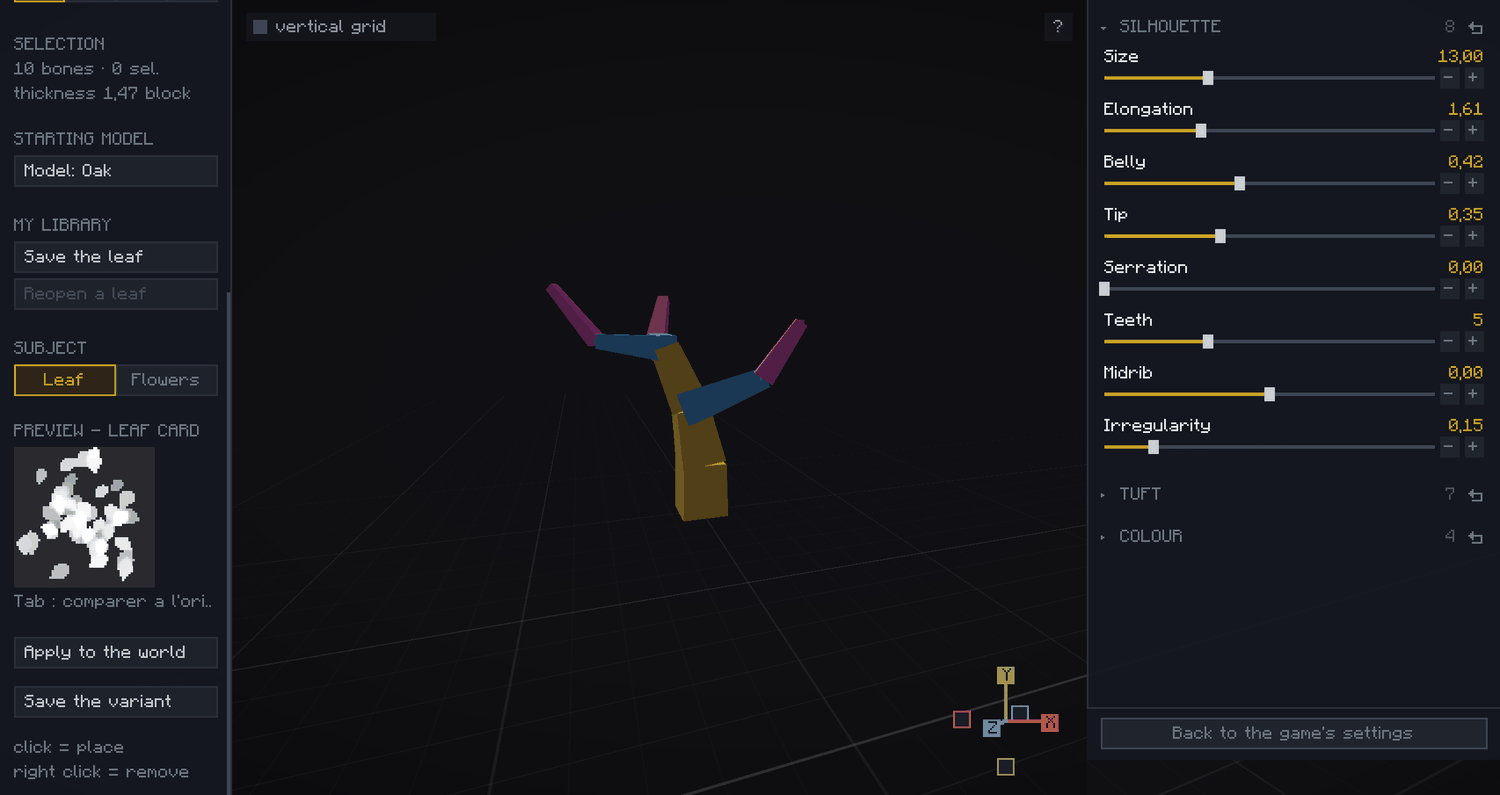
The side panels change to make room for the texture editor: the leaf settings on the right, the texture choices on the left.
Two ways to go about it
There are two ways to create your leaf texture: start from a vanilla model and apply your settings to it, or build a model with the flower editor and apply your settings to that. We will look at both, starting with the first.
Picking the starting texture
Under STARTING MODEL, click the Model button. Then pick whichever model you like: the species does not matter, only its contents do, the one whose shapes come closest to what you are after.
The leaf itself is entirely redrawn, so you will not find the game's leaf in your result. Your leaves are, however, sown inside the holes of that texture: it is what gives the tuft its overall cutout, which is why it is worth picking one whose mass resembles what you want.
You can also start from your own image: drop a PNG into the leaves/images folder of your pack and it will show up in the sheet next to the game's textures. The sheet is re-read every time it opens, no need to restart the game. Your image never enters the atlas, what goes there is the card drawn from it.
Changing the starting texture halfway erases all your settings: the new texture's measurements replace them, and the link to your leaf file is cut. Pick your base first, tune afterwards.
The preview
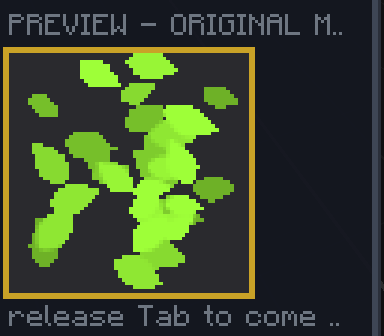
Further down you will find a live preview of your foliage. The tree's own foliage, on the other hand, only updates when you click Apply to the world. Hold TAB at any time to compare before and after, release to come back.
Setting up your texture
The right panel holds three groups:
- Silhouette defines the shape of the leaf, not of the tuft.
- Tuft controls how the texture lays leaves out, and how many of them.
- Colour adjusts the colours and shading of your texture.
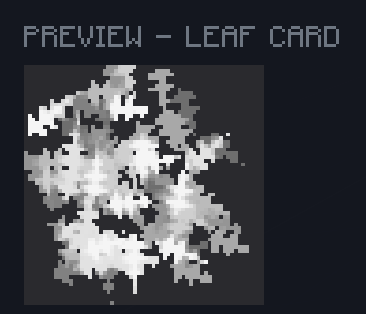
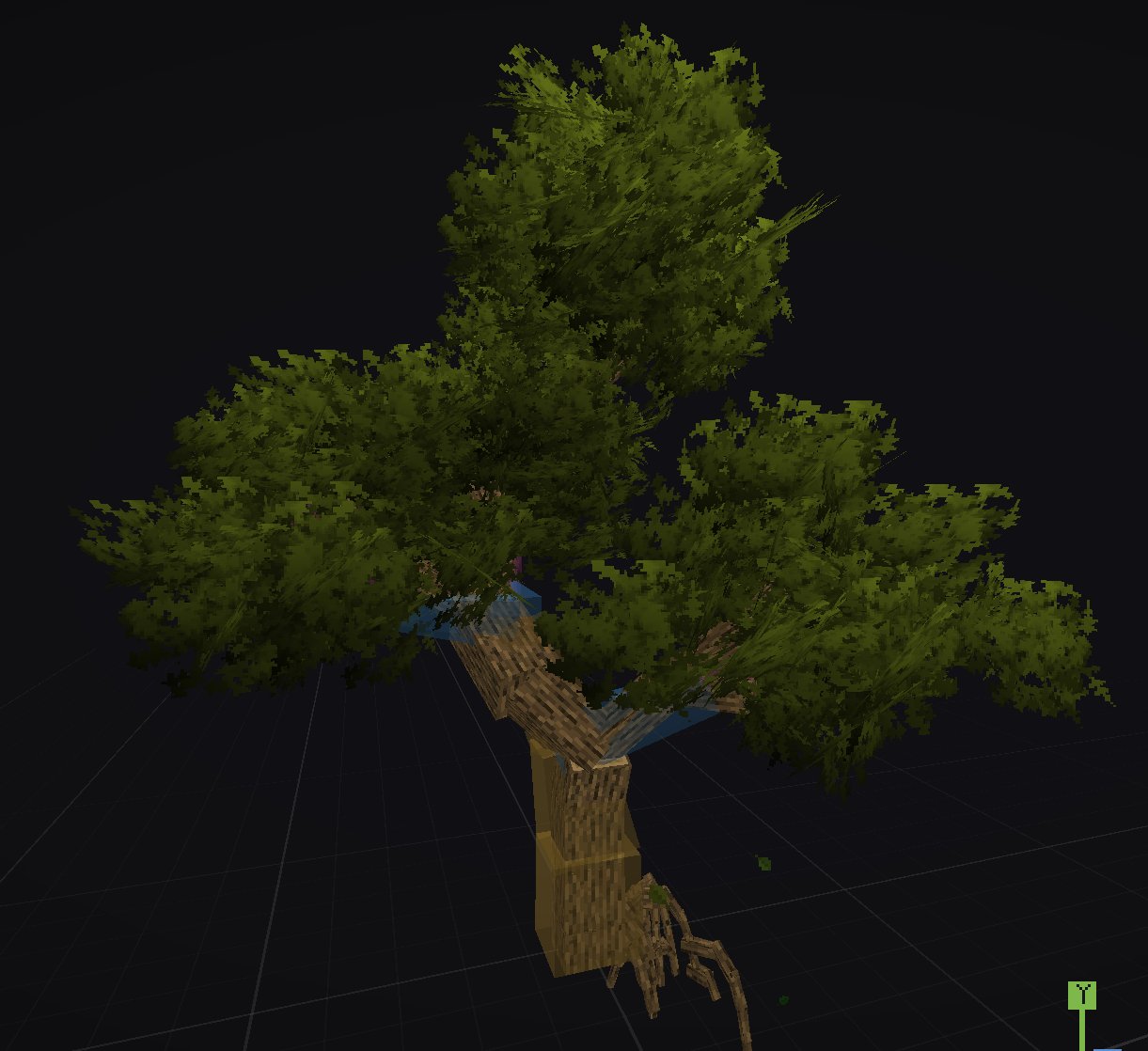
An oak leaf, setting by setting
Here the starting texture is bamboo, picked for its wide, well defined leaves. Oak leaves are elongated and made of broad teeth.
Silhouette:
- Size at 40, for a better defined leaf shape.
- Elongation at 2, an oak leaf is not round.
- Belly at 0.5, the widest part sits closer to the end.
- Tip at 0.3, for a slightly more conical shape.
- Serration at 1.0, which brings the teeth out.
- Teeth at 5, which keeps them readable; too many just makes noise.
- Midrib at 0, the leaves stay straight.
Tuft:
- Density at 3.0, oak foliage is dense, you barely see through it.
- Coverage at 1.0, for several layers of depth and some play of shadows.
- Spread at 0.5, leaves that are not too scattered, to keep a readable mass.
- Direction does not matter here.
Colour:
- Saturation at 0, oak foliage follows the biome colour.
- Luminance and Contrast at 0.5, for balanced shading on the texture.
Flowers and fruit
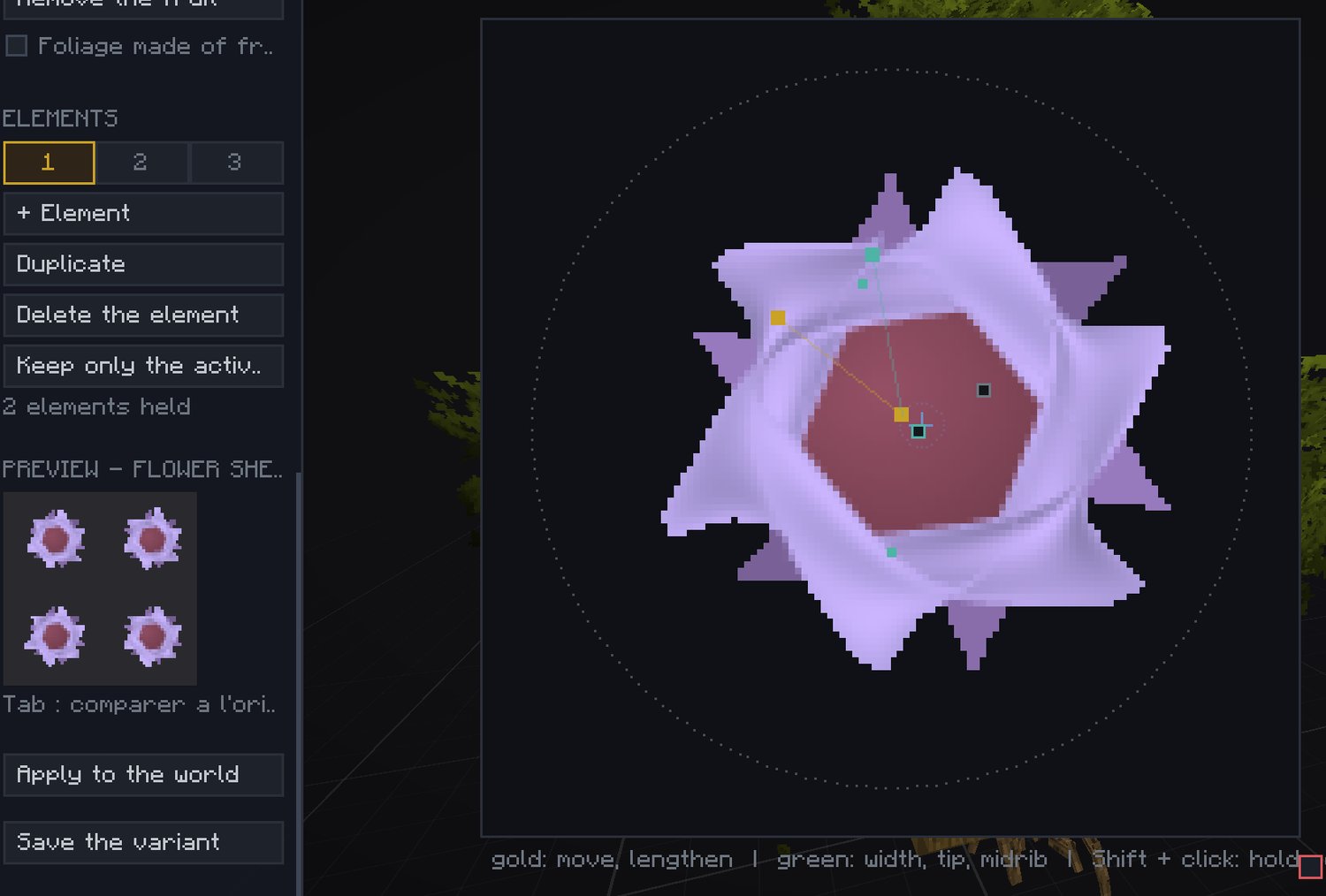
The workshop lets you add flowers and fruit to your trees. Under SUBJECT, click Flowers: a new interface appears on screen and the left panel gains a few controls.
+ Add a fruit adds a whole fruit, and you can add as many as you want. Under the selected fruit, whose number is boxed in gold, you can add, remove or duplicate the elements of that fruit.
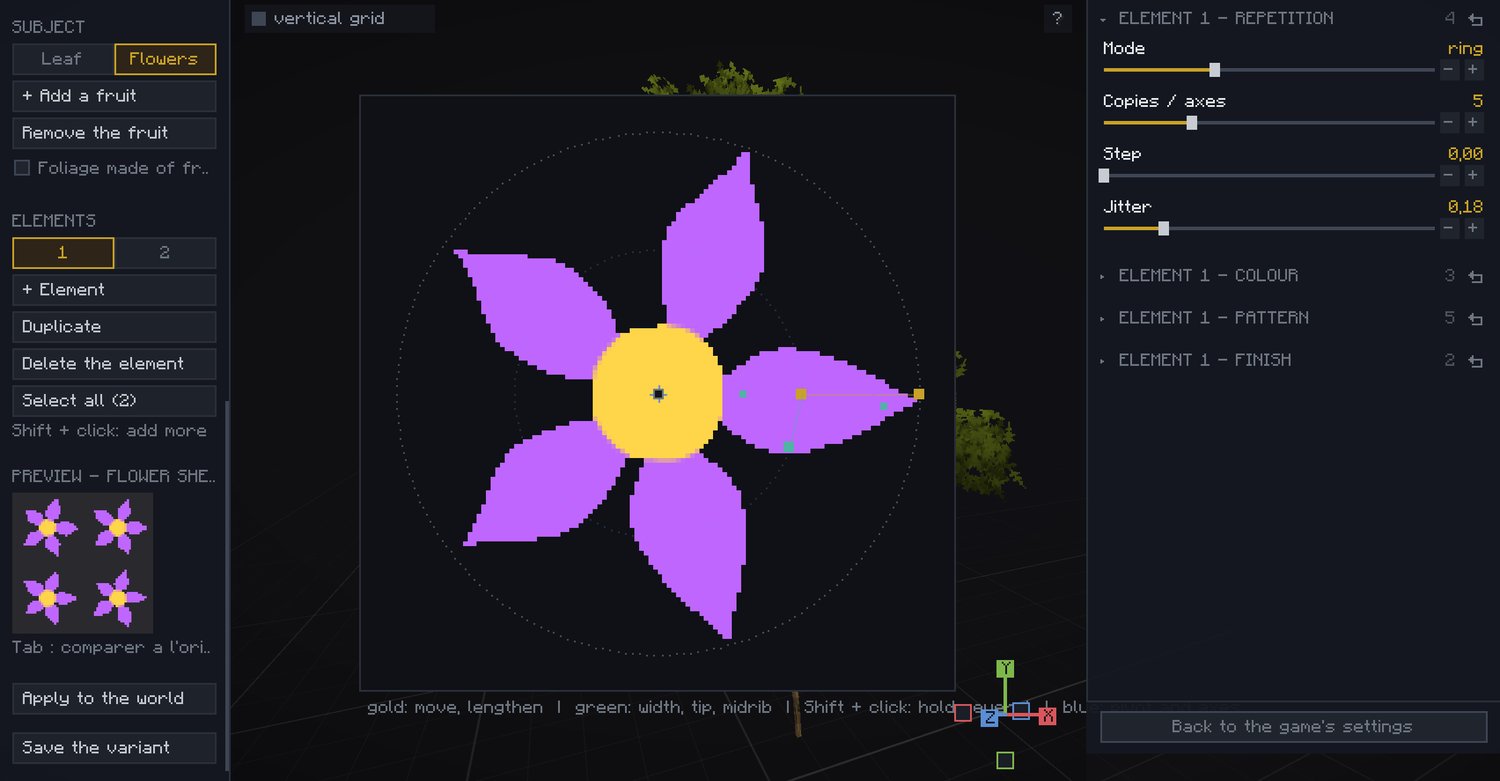
Composing with the mouse
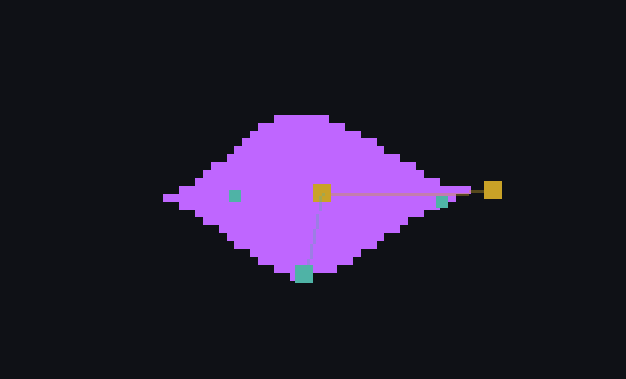
The handles turn with the element: you recognise them by their colour, not by their position.
- The gold handle at the centre moves the element.
- The gold handle at the end sets the length and the direction.
- The green handle on the widest edge sets the width, and depending on where you drag it along the axis, it also moves the belly.
- The green handle near the tip sharpens or rounds it.
- The green handle set back from the anchor bends the midrib.
- The blue cross is the repetition pivot, it never touches the shape.
Shift + click holds several elements at once: the value shown on the right is the active element's, the value you set goes to every element you hold.
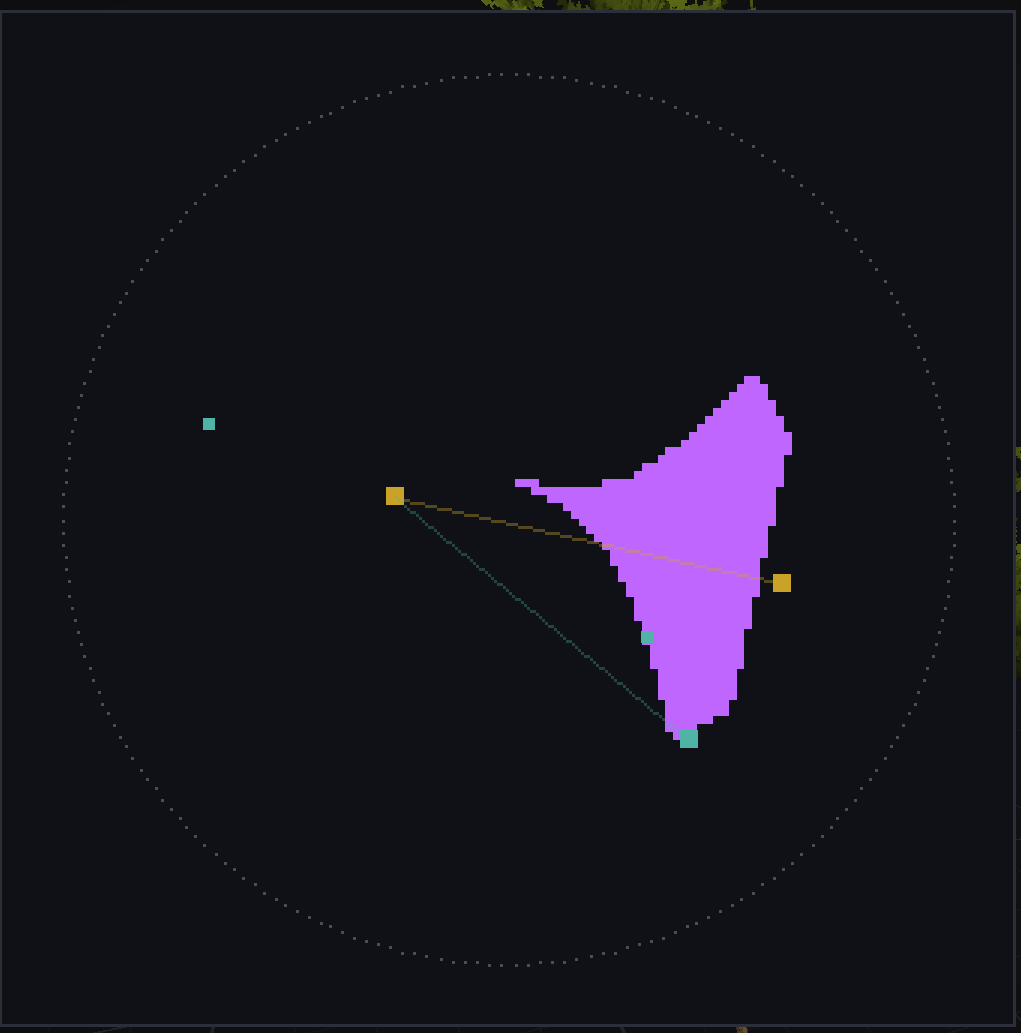
Repeating an element
On the right panel, repetition tab. Four modes are available:
- Single: no repetition.
- Ring: repeated in a circle around the axis.
- Line: repeated in a line from the axis.
- Mirror: mirrored, and adding a repetition adds a mirror axis.
The repetition axis, the blue cross, can be moved freely.
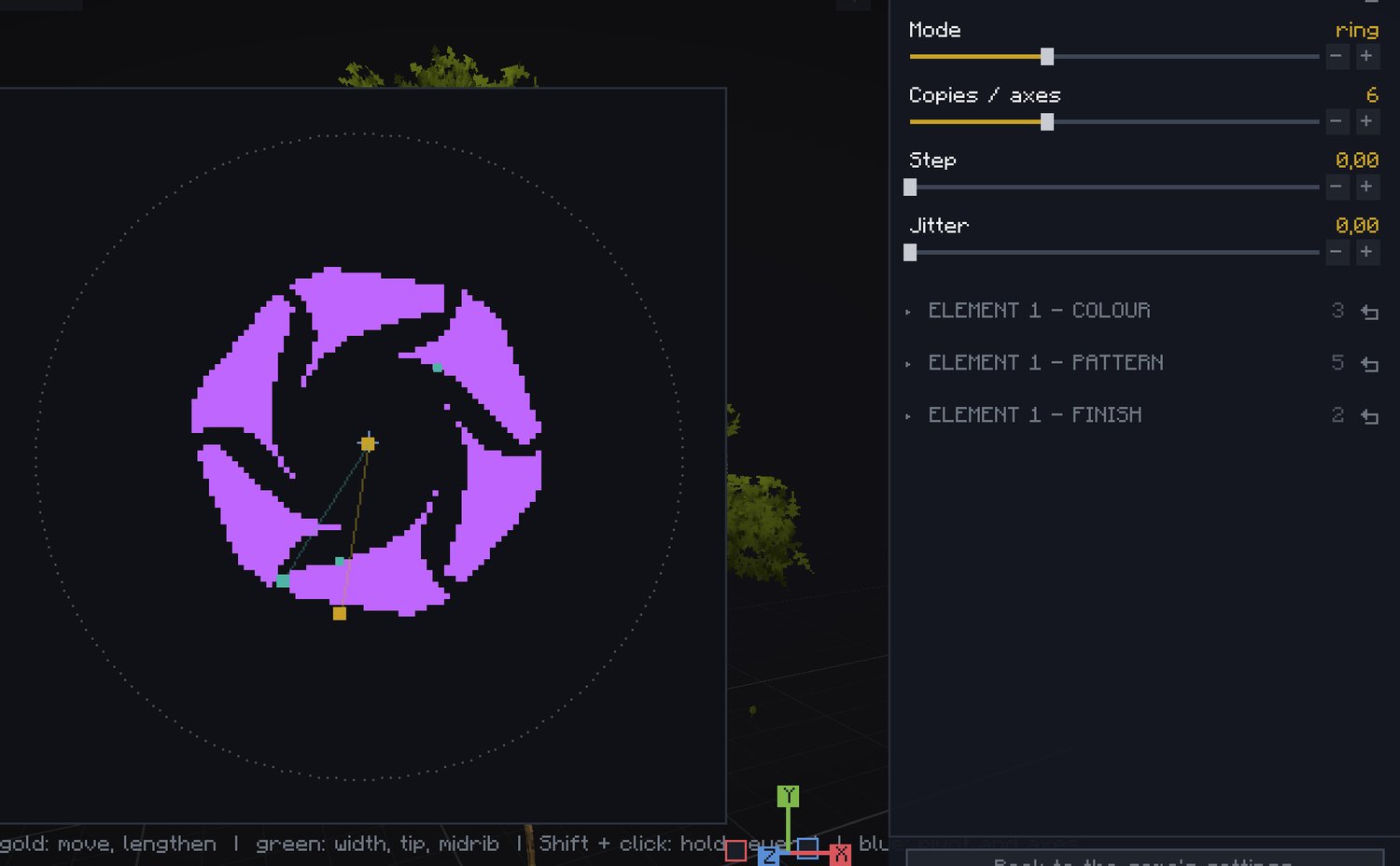
Colour patterns
The pattern tab adds an effect of your choice on the texture: flat, gradient, volume, border, midrib or speckled. The texture ends up compressed, so this mostly adds a little detail to the colours and will stay discreet.
Several elements, several fruits
You can add as many elements as you want. An element's layer order is set in the last tab, draw order.
Every new fruit compresses the texture a little more: the more fruits, the less detail each of them gets.
Setting up the bloom
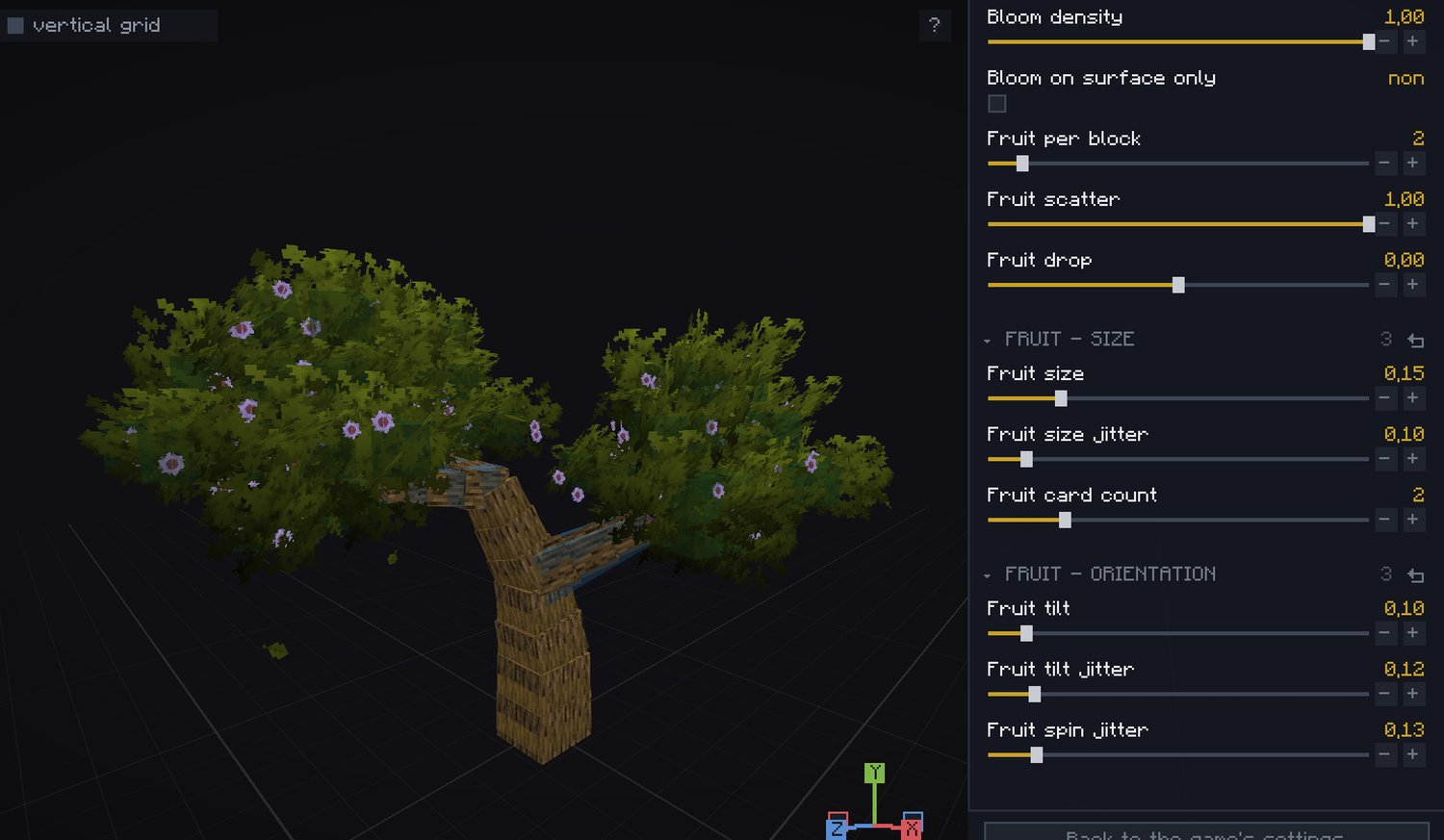
Back in Foliage mode, three Fruit tabs are waiting for you, where you decide how flowers are placed, along with their size, their rotation and their density.
A texture made of flowers
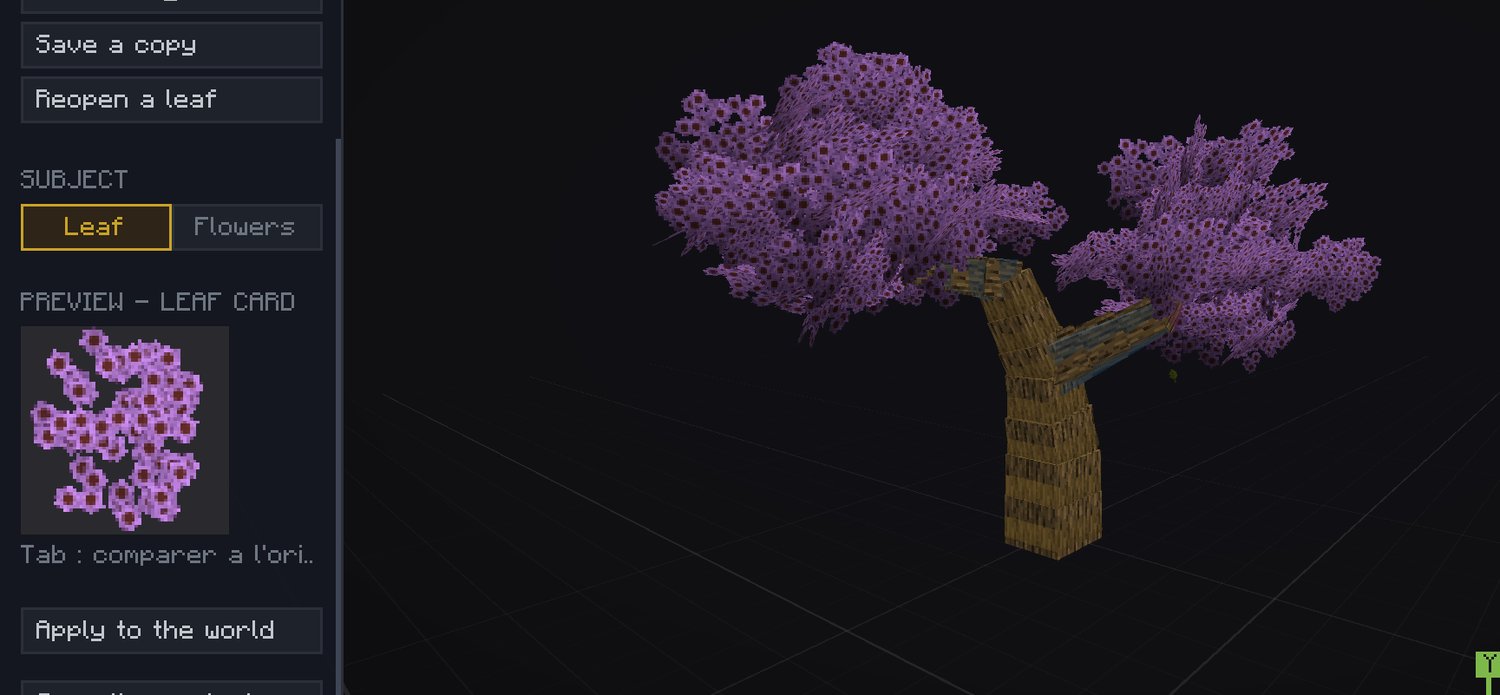
This is the second option announced at the start. You can turn your flowers into the texture itself: tick Foliage made of fruits, then go back to the Leaf tab to tune it as you please. In that case, remember to untick Biome tint, in the Colour group of Foliage mode.
Your leaf library
A leaf is a material: it can be reused from one tree to the next, and it has a folder of its own.
- Save the leaf saves your work. Once named, the button shows the file you are working on.
- Save a copy makes a second one without touching the first, handy to derive a variation.
- Reopen a leaf opens a leaf you already made, yours or one from another tree in your pack.
The file name comes from the species you are editing. A second oak leaf therefore becomes oak-2: nothing is ever overwritten without telling you.
Who the texture belongs to
A leaf does not declare what it replaces: the model is what cites it. It leaves with Save the variant, just like the shape and the foliage.
That is what lets two models of the same tree grow side by side, each with its own leaf, and two packs dress the same oak without stepping on each other.
Remember to use Apply to the world to see your leaf on the tree: it is the only moment the game reloads its images, and therefore the only one that takes a second.